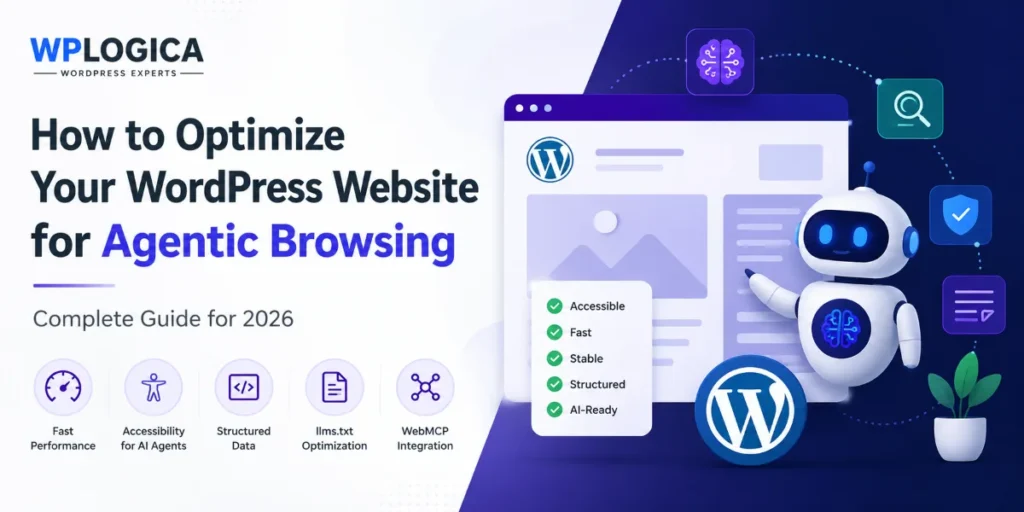
Imagine asking an AI assistant to compare WordPress hosting options, find the right service, or submit a consultation request for you. Instead of only showing search results, the assistant may visit websites, understand what each page offers, and try to complete the task. This is the idea behind agentic browsing.
For website owners, this does not mean building a separate version of the site for AI. It means making the existing website easy to understand, stable while loading, accessible, and clear about the actions a visitor can take. Those improvements also make the site better for real people.
Chrome Lighthouse now includes an experimental Agentic Browsing category. It uses a set of pass-or-fail audits to check whether a page is prepared for machine interaction. Chrome currently describes the category as experimental, so the checks can change as the technology develops. Read Chrome’s official Agentic Browsing scoring guidance
This guide explains Agentic Browsing for WordPress in plain language, shows how to test a page, explains what a 3/3 result means, and gives practical improvements that most WordPress owners can understand and apply.
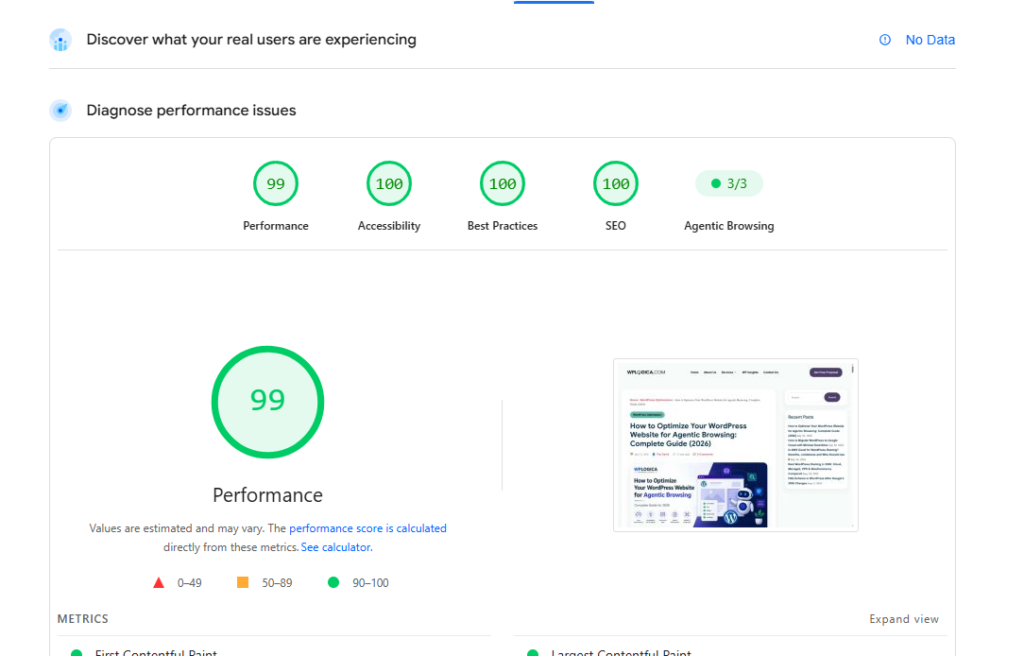
Quick answer A WordPress website is better prepared for agentic browsing when its headings, buttons, links and forms are clearly labelled; its page does not jump around while loading; its important content is easy to access; and optional files such as llms.txt are implemented correctly. A 3/3 Lighthouse result means all three applicable Agentic Browsing audits passed in that test. It is a pass ratio, not a score out of 100.
Table of Contents
What Is Agentic Browsing?
Traditional browsing is manual. A person opens a page, reads the content, clicks a button, fills in a form, and confirms the result. Agentic browsing allows an AI system to assist with some of those steps on the user’s behalf.
For example, a user might ask an AI assistant to:
- Find a suitable managed WordPress hosting service.
- Compare two service options.
- Book a consultation.
- Submit a migration or support request.
- Search a knowledge base.
- Add a product to a WooCommerce cart.
To complete these tasks, the agent must understand more than the words on the page. It also needs to identify buttons, links, menus, form fields, validation messages and confirmation screens. A website can look attractive to a person but still be confusing to a machine if its controls are poorly labelled or its structure is unclear.
Why Agentic Browsing Matters for WordPress
WordPress websites often ask visitors to take action. Business sites collect enquiries, WooCommerce stores process purchases, membership sites manage registrations, and service websites use quotation or booking forms. These actions may eventually be completed with help from browser-based AI agents.
The practical preparation is not “AI optimization” in isolation. It is good web design: clear content, accessible controls, reliable performance and predictable interactions. A descriptive button helps a person and an agent. A stable layout prevents accidental clicks for both. A fast page reduces frustration and makes automated interaction more dependable.
A reliable hosting foundation also supports faster delivery and consistent page behaviour. See WPLogica’s WordPress Hosting services for hosting built around WordPress performance, security and support.
How to Test Agentic Browsing in Lighthouse
You can check an important page using Chrome Lighthouse:
- Open the page in a recent version of Chrome.
- Right-click the page and select Inspect.
- Open the Lighthouse panel in Chrome DevTools.
- Select the Agentic Browsing category when it is available.
- Run the analysis.
- Open each audit to review the pass result, warning or failure details.
Because the category is experimental, it may not be available in every browser version or testing setup. Chrome’s documentation currently notes that Agentic Browsing testing requires a recent Chrome version and that WebMCP-specific audits may have separate experimental requirements.
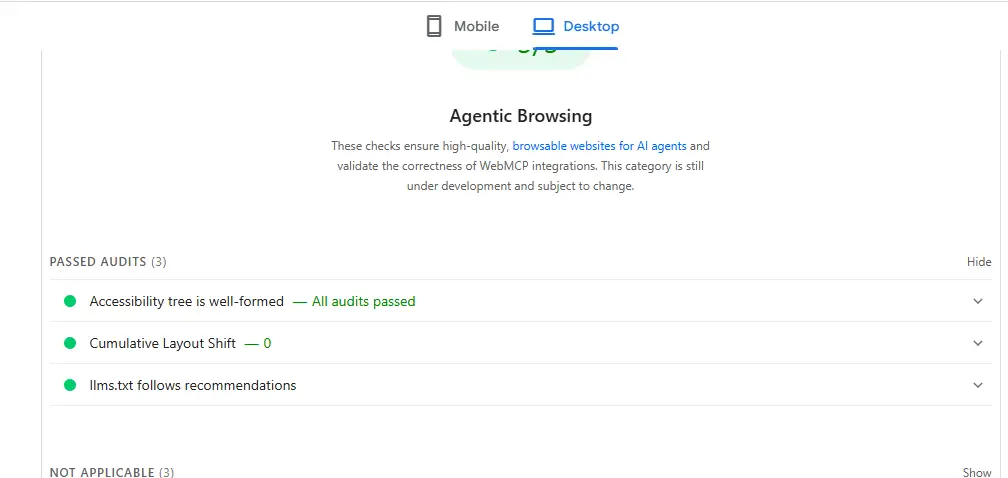
WPLogica passing all current Agentic Browsing audits in Lighthouse (3/3).
What Does a 3/3 Agentic Browsing Result Mean?
Lighthouse does not currently present Agentic Browsing as a weighted score such as 90 or 100. It reports how many applicable audits passed. In the WPLogica test shown above, all three audits passed, so the page received 3/3.
A 3/3 result means the page passed the audits available in that specific test. It does not guarantee that every future AI agent will use the website perfectly, and it is not a confirmed Google Search ranking signal. The category is still experimental, and Chrome may add, remove or adjust audits over time.
What Lighthouse Currently Checks
| Audit | What it checks | Why it matters |
| Accessibility tree | Whether the page exposes a usable structure of headings, controls, links and content. | Helps assistive technology and agents understand what each element is and what it does. |
| Layout stability | Whether page elements shift unexpectedly during loading and interaction. | A stable target is easier and safer for both people and automated systems to use. |
| llms.txt | Whether the optional llms.txt resource follows the expected recommendations when present. | Provides a concise, machine-readable summary of useful public pages and site information. |
1. Make the Page Easy to Understand
The accessibility tree is a simplified map of a webpage. It tells browsers, screen readers and AI agents which elements are headings, buttons, links, images, menus and form fields. When that map is incomplete, an agent may not understand what it can do.
WordPress owners can improve this without becoming developers:
- Use one clear H1 for the main page topic.
- Organize sections with properly nested H2 and H3 headings.
- Use descriptive link text instead of “click here.”
- Give every form field a visible label.
- Rename vague buttons such as “Submit” to “Request WordPress Support.”
- Add useful alt text to meaningful images.
- Test the published page, not only the WordPress or Elementor editor.
The WordPress Accessibility Team Handbook is a useful official starting point for accessibility practices within WordPress.
2. Keep the Layout Stable
Imagine an agent locating a “Book a Consultation” button. Before it interacts, a late-loading banner pushes the button down the page. The original target has moved. This is why layout stability matters.
Cumulative Layout Shift, or CLS, measures unexpected visual movement. Common WordPress causes include images without defined dimensions, cookie notices inserted above content, sliders that resize, late-loading fonts, advertisements without reserved space, and pop-ups that change the page layout.
To reduce layout shifts:
- Set image width and height.
- Reserve space for videos, banners and embeds.
- Keep cookie notices and announcement bars in stable positions.
- Avoid inserting new content above existing content after the page loads.
- Test sticky headers, sliders and pop-ups on mobile.
- Remove unnecessary animations that change the layout.
For wider performance improvements, see WPLogica’s WordPress Speed Optimization service. You can also review the official Web Vitals guidance on web.dev for current performance and stability metrics.
3. Add and Maintain llms.txt Carefully
An llms.txt file is an emerging, optional way to provide AI systems with a concise Markdown summary of a website and links to important public resources. It is normally available at yourdomain.com/llms.txt.
A useful file should be short, accurate and easy to maintain. It might contain the business name, a one-sentence description and links to key services, documentation or policies. Do not use it as a place for keyword stuffing, exaggerated claims or hidden content.
It is also important not to present llms.txt as a guaranteed Google ranking factor. It does not replace crawlable content, accessible pages, structured data or established SEO work.
| # WPLogica > WordPress hosting and professional WordPress services. ## Main Services – WordPress Hosting – WordPress Security Services – WordPress Speed Optimization – WordPress Migration Services |
How to Improve a WordPress Site for Agentic Browsing
Start with the improvements that benefit visitors immediately. Most business owners do not need to implement experimental agent tools to make meaningful progress.
Use clear headings and page structure: Make the main topic obvious and organize supporting sections logically. In Elementor, use real Heading widgets rather than enlarging ordinary text to look like a heading.
Make forms unambiguous: Use visible labels, clear required-field indicators and useful error messages. Explain what happens after submission.
Name buttons by action: “Get a Migration Quote” is clearer than “Submit.” “View Hosting Features” is clearer than “Learn More” when the destination is specific.
Keep important content accessible: Service descriptions, prices, contact details, navigation and calls to action should not depend entirely on complex JavaScript or hidden sliders.
Use accurate structured data: Article, Breadcrumb, Service, Organization and other schema should match the visible page. Avoid fake reviews, hidden FAQs and unsupported claims.
Improve speed and reliability: Compress images, remove unnecessary scripts, use caching, reduce heavy third-party tools and choose hosting that matches the site’s workload.
Protect actions and data: Forms, account areas and experimental integrations should use validation, spam protection, secure permissions and clear confirmation steps.
When discussing structured data, link readers to WPLogica’s guide to FAQ Schema in WordPress after Google’s 2026 changes. For security-sensitive forms and integrations, WPLogica’s WordPress Security Services page provides relevant support information.
Common Mistakes to Avoid
- Treating a 3/3 result as proof that the site is permanently optimized for every AI agent.
- Claiming that Agentic Browsing or llms.txt is a confirmed Google ranking factor.
- Adding technical code only to chase a Lighthouse pass without improving real usability.
- Using placeholder text instead of visible form labels.
- Keeping generic button names such as “Submit” or “Click Here.”
- Allowing banners, fonts or images to move important controls after the page loads.
- Publishing inaccurate llms.txt content and forgetting to update it when the site changes.
- Implementing experimental WebMCP actions without security, validation and testing.
Real WPLogica Result: 3/3 Agentic Browsing
After improving the page structure, maintaining a stable layout and publishing a recommended llms.txt resource, this WPLogica article passed all three Agentic Browsing audits in Lighthouse. The same PageSpeed test also reported 99 Performance and 100 for Accessibility, Best Practices and SEO on desktop.
These results do not guarantee rankings or universal AI compatibility. They do provide useful evidence that the page follows current technical best practices and that the recommendations in this guide have been tested on a real WordPress page.
WordPress Agentic Browsing Checklist
- One descriptive H1 is used.
- H2 and H3 headings follow a logical order.
- Links and buttons describe their destination or action.
- Form fields have visible labels.
- Meaningful images have suitable alt text.
- Important content is easy to access in the page.
- Images and embeds have reserved dimensions.
- The layout remains stable while loading.
- The page works properly on mobile.
- Core Web Vitals and JavaScript errors are monitored.
- Structured data matches visible content.
- llms.txt is accurate when used.
- Lighthouse failures are reviewed and retested.
Final Thoughts
You do not need to become an AI developer to prepare WordPress for agentic browsing. Start with the foundations: accessible controls, clear forms, stable layouts, fast delivery, logical content and trustworthy information.
A 3/3 Lighthouse result is a useful current benchmark, but the category will continue to evolve. Review important pages periodically and update this guidance when Chrome changes its audits. The strongest approach is to build a website that works reliably for people first and is structured clearly enough for machines to understand as well.
Frequently Asked Questions
What is Agentic Browsing for WordPress?
Agentic Browsing for WordPress means preparing a WordPress website so browser-based AI agents can understand its content, identify available actions and interact with features more reliably.
Is page speed part of the Agentic Browsing score?
Page speed is important for reliable browsing, but it is measured separately through Lighthouse Performance and Core Web Vitals. The experimental Agentic Browsing category uses its own deterministic audits.
What does 3/3 mean in Lighthouse Agentic Browsing?
It means the page passed all three applicable Agentic Browsing audits in that test. It is a pass ratio, not a percentage or a score out of 100.
Does every WordPress website need WebMCP?
No. WebMCP is experimental. It is most relevant to websites that want to expose clear, structured actions for browser-based AI agents.
Does llms.txt improve Google rankings?
There is no basis for presenting llms.txt as a guaranteed Google ranking factor. It should be treated as an experimental machine-readable website summary, not as a substitute for SEO, accessible content or structured data.