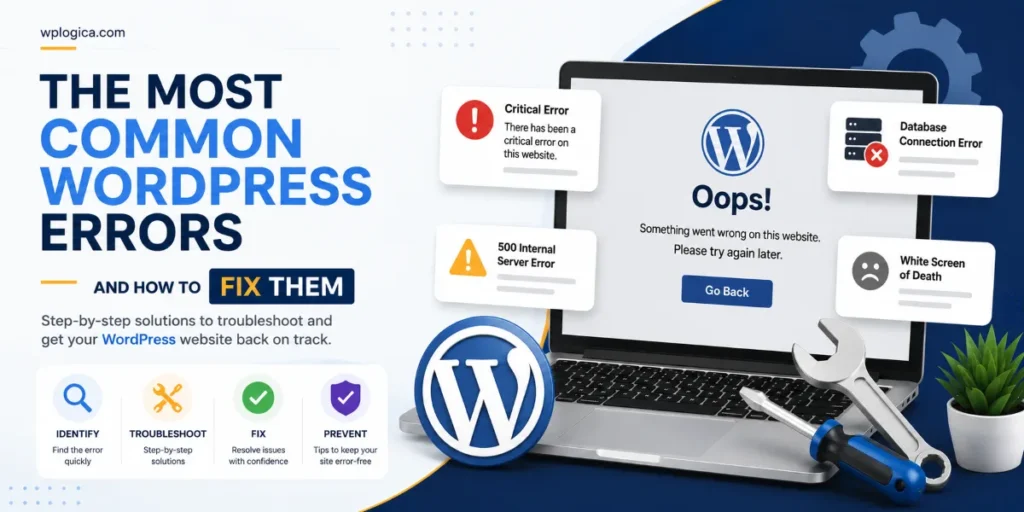
WordPress powers millions of websites worldwide, but even the most reliable websites can run into technical issues from time to time. A plugin update, incorrect configuration, server problem, or theme conflict can suddenly make your website inaccessible or prevent it from working as expected.
The good news is that many common WordPress errors can be fixed without rebuilding your website from scratch. By understanding what causes these issues and following a structured troubleshooting process, you can often restore your website quickly and prevent similar problems in the future.
In this guide, we’ll walk through some of the most common WordPress errors, explain why they happen, and show you practical steps to fix them.
Table of Contents
What Causes WordPress Errors?
Most WordPress problems are caused by one or more of the following:
- Plugin conflicts
- Theme compatibility issues
- Incorrect website settings
- Corrupted files
- Database problems
- PHP memory limitations
- Server configuration errors
- Failed WordPress updates
Before making any changes, it’s always recommended to:
- Create a complete website backup.
- Test fixes on a staging site if available.
- Note any recent updates or changes made before the problem started.
There Has Been a Critical Error on This Website
This message usually appears when WordPress encounters a fatal PHP error that prevents the website from loading.
Full guide: how to fix the critical error, step by step.
Common Causes
- Plugin conflicts
- Theme errors
- Unsupported PHP version
- Corrupted WordPress files
How to Fix It
- Enable WordPress debugging.
- Check the
debug.logfile for the exact error. - Disable recently installed plugins.
- Switch to a default WordPress theme.
- Restore a recent backup if necessary.
White Screen of Death (WSOD)
A completely blank page usually indicates that WordPress has encountered a fatal error before it can display any content.
Full guide: how to fix the WordPress white screen of death, step by step.
Common Causes
- Memory exhaustion
- Faulty plugins
- Theme conflicts
- PHP errors
How to Fix It
- Increase the PHP memory limit.
- Disable all plugins and reactivate them one by one.
- Temporarily switch to a default WordPress theme.
- Check your error logs for additional details.
Error Establishing a Database Connection
This error means WordPress cannot communicate with your MySQL database.
Common Causes
- Incorrect database credentials
- Corrupted database
- Database server outage
- Hosting issues
How to Fix It
- Verify database details in
wp-config.php. - Contact your hosting provider to confirm the database server is running.
- Repair the database if needed.
- Restore a working backup if the database has become corrupted.
500 Internal Server Error
A 500 Internal Server Error is a generic server response that usually points to configuration or software issues.
Full guide: how to fix the 500 Internal Server Error, step by step.
Common Causes
- Corrupted
.htaccessfile - Plugin conflicts
- PHP errors
- Server configuration problems
How to Fix It
- Rename your
.htaccessfile and regenerate it. - Disable all plugins temporarily.
- Increase PHP memory if required.
- Review your server’s error logs.
404 Errors After Changing Permalinks
If pages suddenly return a 404 error after changing permalink settings, the URL rewrite rules may not have been updated correctly.
How to Fix It
- Go to Settings → Permalinks.
- Click Save Changes without modifying anything.
- Clear your website and browser cache.
- Test the affected pages again.
WordPress Stuck in Maintenance Mode
Sometimes a failed update leaves WordPress stuck showing the maintenance message.
How to Fix It
- Connect to your website using File Manager or FTP.
- Delete the hidden
.maintenancefile from your WordPress installation. - Retry the update after confirming everything is working normally.
Memory Exhausted Error
Large plugins, page builders, or WooCommerce stores may exceed the available PHP memory limit.
Full guide: how to fix the PHP memory limit error, step by step.
How to Fix It
- Increase the PHP memory limit through your hosting control panel or configuration files.
- Remove unnecessary plugins.
- Optimize resource-heavy plugins and themes.
- Upgrade your hosting plan if your website regularly exceeds available resources.
Login Page Redirect Loop
Sometimes WordPress repeatedly redirects users back to the login page without allowing access.
Common Causes
- Browser cookies
- Plugin conflicts
- Incorrect site URL settings
- Cache problems
How to Fix It
- Clear browser cookies and cache.
- Disable plugins temporarily.
- Verify the WordPress Address and Site Address settings.
- Clear any server or CDN cache.
Image Upload Errors
If WordPress refuses to upload images, the issue is often related to permissions or server limits.
Common Causes
- Incorrect file permissions
- Low PHP upload limits
- Disk space issues
- Unsupported image formats
How to Fix It
- Check upload folder permissions.
- Increase upload size limits.
- Verify available disk space.
- Optimize large images before uploading.
Plugin or Theme Conflicts
Installing multiple plugins with similar functionality can cause unexpected issues across your website.
How to Fix It
- Disable all plugins.
- Reactivate each plugin individually until the problem returns.
- Replace outdated or unsupported plugins.
- Keep WordPress, themes, and plugins updated.
Tips to Prevent Common WordPress Errors
While no website is completely immune to technical issues, following a few best practices can significantly reduce the chances of unexpected problems:
- Keep WordPress core updated.
- Update plugins and themes regularly.
- Remove unused plugins and themes.
- Schedule automatic backups.
- Use reliable WordPress hosting.
- Monitor website uptime.
- Test major updates on a staging website first.
- Perform regular website maintenance.
Regular maintenance helps identify small issues before they become major problems that affect your visitors or search engine rankings.
When Should You Get Professional Help?
If you’ve tried the troubleshooting steps above and your website is still experiencing issues, it may be time to seek professional assistance. Persistent errors, malware infections, database corruption, or repeated plugin conflicts often require a more detailed investigation.
At WPLogica, our WordPress Website Maintenance service helps keep your website secure, updated, and performing at its best. From troubleshooting technical errors to managing updates, backups, performance optimization, and security monitoring, our team takes care of the technical work so you can focus on your business.
Frequently Asked Questions
What is the most common WordPress error?
Critical errors, plugin conflicts, and database connection errors are among the most common issues experienced by WordPress website owners.
Can I fix WordPress errors without coding?
Yes. Many WordPress problems can be resolved through the WordPress dashboard, hosting control panel, or by following basic troubleshooting steps.
Why did my website suddenly stop working?
Recent plugin updates, theme changes, server issues, or configuration errors are common reasons for unexpected website failures.
How can I prevent WordPress errors?
Keep WordPress updated, create regular backups, use trusted plugins, and perform routine website maintenance.
Should I update plugins immediately?
It’s best to test updates on a staging site first, especially for business-critical websites, before applying them to your live site.
What should I do before troubleshooting my website?
Always create a full backup before making changes so you can restore your website if something goes wrong.
Conclusion
Encountering WordPress errors can be frustrating, but many common issues have straightforward solutions when approached systematically. By identifying the root cause, following the appropriate troubleshooting steps, and maintaining your website regularly, you can minimize downtime and keep your site running smoothly.
If you’re looking for a reliable partner to handle updates, troubleshooting, backups, and ongoing maintenance, WPLogica is here to help with expert WordPress support tailored to your website’s needs.