Table of Contents
How to Fix the WordPress PHP Memory Limit Error
If you’re seeing the “Allowed memory size exhausted” error in WordPress, your website has reached the maximum amount of PHP memory allocated by your hosting environment. This can happen when running resource-intensive plugins, WooCommerce stores, large imports, or outdated themes. Fortunately, the issue is usually straightforward to resolve by increasing the PHP memory limit or identifying the component consuming excessive memory.
In this guide, we’ll explain what the error means, why it happens, and the safest ways to fix it.
What Is the WordPress PHP Memory Limit Error?
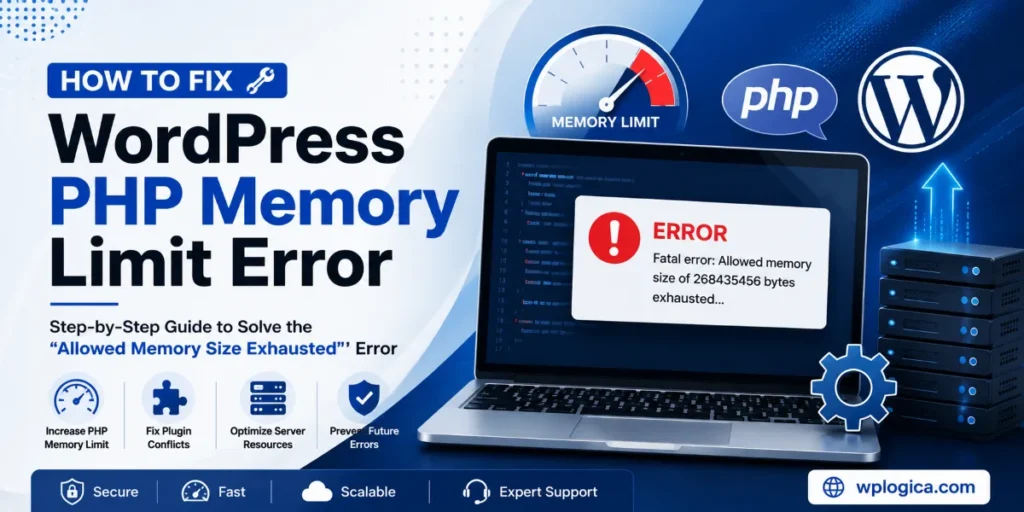
WordPress runs on PHP, and every PHP process is given a specific amount of server memory. When WordPress, a plugin, or a theme tries to use more memory than the server allows, PHP stops the process and displays an error similar to:
Fatal error: Allowed memory size of 268435456 bytes exhausted...This safeguard prevents one process from consuming all available server resources and affecting other websites or applications on the same server.
Common Causes of the Error
Several factors can trigger a PHP memory limit error in WordPress.
Resource-Heavy Plugins
Backup plugins, page builders, security scanners, and image optimization tools may temporarily require more memory while processing data.
WooCommerce Stores
Online stores often use additional memory for product management, inventory updates, customer sessions, and checkout processes.
Large Media Imports
Importing thousands of products, images, or posts can exceed the available PHP memory.
Poorly Optimized Themes or Plugins
A plugin or theme with inefficient code may consume more memory than necessary.
Low Hosting Limits
Some entry-level hosting plans provide a relatively low PHP memory allocation, which may not be sufficient for growing websites.
How to Fix the WordPress PHP Memory Limit Error
1. Increase the PHP Memory Limit
The quickest solution is increasing the PHP memory allocation.
Many hosting providers allow this through:
- cPanel
- Plesk
- CloudPanel
- DirectAdmin
- Hosting control panels
If you’re managing your own server, you may also update the memory limit through your PHP configuration.
2. Update the wp-config.php File
Many WordPress installations allow increasing the memory limit by adding the following line before:
/* That's all, stop editing! Happy publishing. */define('WP_MEMORY_LIMIT', '256M');Depending on your hosting provider, you may be able to use higher values such as 512M if required.
3. Check for Plugin Conflicts
If the error appeared after installing or updating a plugin:
- Disable recently installed plugins.
- Activate them one at a time.
- Identify which plugin causes the memory spike.
- Replace it with a more efficient alternative if necessary.
Keeping only essential plugins also improves website performance.
4. Switch to a Default Theme
A poorly coded or outdated theme may consume excessive server resources.
Temporarily activate a default WordPress theme, such as Twenty Twenty-Six, to determine whether the issue is theme-related.
5. Upgrade Your Hosting Resources
Increasing the PHP memory limit won’t always solve the underlying problem.
If your website has grown significantly, upgrading your hosting plan or moving to a scalable cloud platform like AWS, Google Cloud, or Microsoft Azure may provide the additional CPU, RAM, and storage resources your site requires.
How to Prevent PHP Memory Errors
Preventing the issue is often easier than fixing it repeatedly.
Follow these best practices:
- Keep WordPress updated.
- Update plugins and themes regularly.
- Remove unused plugins.
- Use well-maintained plugins from trusted developers.
- Optimize images before uploading.
- Schedule regular database optimization.
- Monitor server resource usage.
- Choose hosting that matches your website’s traffic and workload.
Recommended PHP Memory Limits
| Website Type | Recommended Memory |
|---|---|
| Personal Blog | 128 MB |
| Business Website | 256 MB |
| WooCommerce Store | 256–512 MB |
| Membership or LMS Website | 512 MB or higher |
The ideal value depends on the number of plugins, traffic levels, and server configuration.
When Increasing Memory Isn’t Enough
If the error keeps returning even after increasing the memory limit, the root cause may be elsewhere.
Common reasons include:
- Memory leaks in plugins
- Poorly written custom code
- Infinite loops
- Malware infections
- Outdated PHP versions
- Insufficient server resources
In these cases, simply increasing memory may only mask the problem temporarily. Identifying and resolving the underlying issue is the better long-term solution.
Frequently Asked Questions
What causes the WordPress PHP memory limit error?
The error occurs when WordPress or one of its plugins requires more PHP memory than your server allows.
Is increasing the PHP memory limit safe?
Yes, provided your hosting environment supports the new limit and your server has sufficient available resources.
How much PHP memory does WooCommerce need?
Most WooCommerce websites perform well with 256 MB to 512 MB, although larger stores may require additional resources.
Can a plugin cause memory errors?
Yes. Poorly optimized or resource-intensive plugins are one of the most common causes of PHP memory limit errors.
Should I upgrade my hosting instead?
If your website regularly reaches the memory limit despite optimization, upgrading to a more capable hosting environment is usually the better long-term solution.
Final Thoughts
The WordPress PHP memory limit error is common, but it’s usually easy to resolve once you identify what’s consuming server resources. Whether the issue is caused by plugins, themes, WooCommerce, or hosting limitations, addressing the root cause will help improve your website’s stability and performance.
If you’re unsure which component is causing the problem or need help optimizing your WordPress environment, professional support can save time and prevent recurring issues.
At WPLogica, we help businesses troubleshoot WordPress errors, optimize performance, migrate websites, and support WordPress hosting on AWS, Google Cloud, Azure, and other cloud platforms.