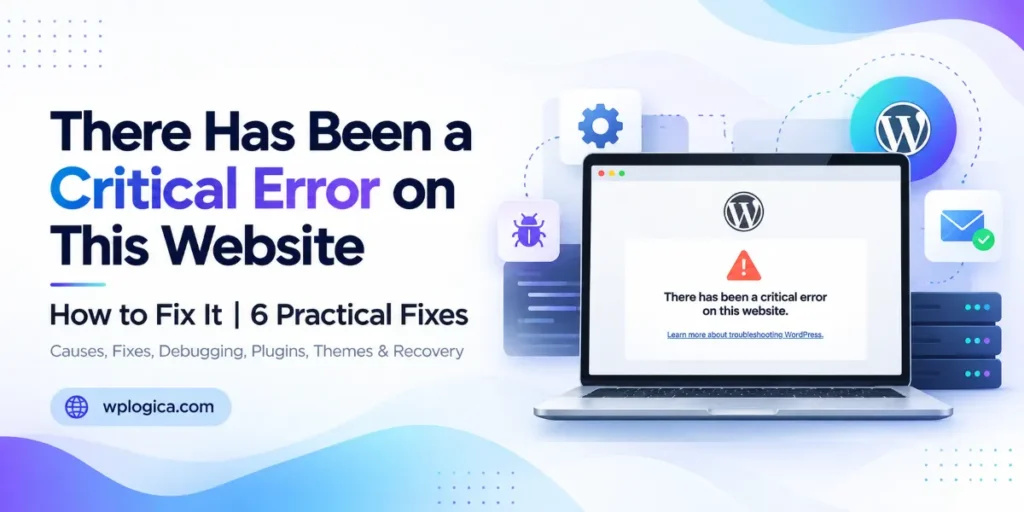
If your site suddenly shows “There has been a critical error on this website”, WordPress has hit a fatal PHP error it can’t recover from. The good news: this message is WordPress protecting you. Since WordPress 5.2, instead of crashing to a blank white screen, WordPress catches fatal errors, shows a notice like this one and usually emails the site admin a link to get back in.
This guide walks through how to find the exact cause and fix it, in the order we use when a client’s site goes down.
Table of Contents
What causes “There has been a critical error on this website”?
The message always means PHP stopped with a fatal error. The most common triggers are:
- A plugin update that isn’t compatible with your theme, another plugin or your PHP version
- A theme update or a custom code change in
functions.php - Your host upgrading PHP, which breaks older plugins or themes
- Running out of PHP memory on heavy pages (see our guide to the PHP memory limit error)
- Corrupted or partially uploaded files after a failed update
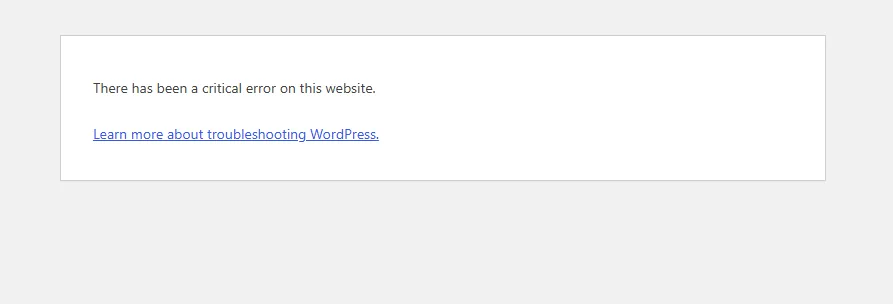
Step 1: Check the admin email for the recovery link
When WordPress shows “There has been a critical error on this website”, it also sends an email titled “Your Site is Experiencing a Technical Issue” to the address in Settings → General. It names the plugin or theme that caused the error and includes a recovery mode link. Recovery mode lets you log in to the dashboard with the faulty plugin or theme paused, so you can deactivate or update it. The WordPress core team’s recovery mode announcement explains how it works.
Check spam folders too. If the admin email is outdated or your site can’t send email, move on to step 2.
Step 2: Turn on debugging to see the real error
Connect to your site with your host’s File Manager or SFTP, open wp-config.php and add these lines above the line that says “That’s all, stop editing!”:
define( 'WP_DEBUG', true );
define( 'WP_DEBUG_LOG', true );
define( 'WP_DEBUG_DISPLAY', false );
Reload the broken page, then open wp-content/debug.log. The last lines will show the fatal error and, usually, the file path. A path containing /wp-content/plugins/plugin-name/ points straight to the plugin at fault.
Keep WP_DEBUG_DISPLAY set to false so visitors never see error details, and switch debugging off again once the site is fixed. The WordPress handbook’s debugging guide covers every option.
Step 3: Disable the plugin causing the error
If you can’t reach the dashboard, disable plugins from the file system:
- Go to
wp-content/plugins/. - Rename the folder of the plugin named in the log (for example
plugin-nametoplugin-name-off). WordPress deactivates a plugin whose folder it can’t find. - If you don’t know which plugin it is, rename the whole
pluginsfolder toplugins-off, confirm the site loads, then open Plugins → Installed Plugins so WordPress records them as deactivated. Rename the folder back and reactivate plugins one at a time until the error returns.
With SSH access, WP-CLI is faster: wp plugin deactivate plugin-name, or wp plugin deactivate --all to test with everything off.
Step 4: Rule out the theme
If the log points to /wp-content/themes/, rename your active theme’s folder. WordPress will fall back to an installed default theme such as Twenty Twenty-Five. If the site loads, the problem is in the theme or in custom code added to its functions.php.
Step 5: Check your PHP version
If the error started without any update on your side, your host may have changed the PHP version. Fatal errors such as Call to undefined function or Uncaught TypeError coming from older plugins are a common sign. In your hosting panel, check which PHP version the site runs. The right fix is to update the plugin or theme so it supports current PHP; switching PHP back is only a short-term workaround. WordPress.org lists the recommended PHP version for current releases.
Step 6: Restore a backup if nothing else works
If the error came from a failed update or corrupted files and you can’t pin it down, restoring the most recent working backup is often the fastest way back online. Afterwards, apply updates one at a time on a staging copy to find the one that breaks the site.
How to stop “There has been a critical error on this website” coming back
- Update plugins one at a time, not all at once, and test the site after each one.
- Test major updates on a staging site first.
- Keep a recent backup you know you can restore.
- Remove plugins you no longer use.
- Keep the admin email address current so recovery emails reach you.
If keeping up with updates and fixes isn’t something you have time for, a WordPress maintenance plan covers tested updates, backups and monitoring, with 24×7 technical support. For other errors, see our overview of the most common WordPress errors.
Frequently asked questions
What does “There has been a critical error on this website” mean?
It means PHP hit a fatal error while loading the page, usually in a plugin, theme or custom code, so WordPress stopped loading it. Instead of a blank screen, WordPress shows this message and emails the site admin a recovery link.
Will I lose my content because of a critical error?
No. Posts, pages and settings are stored in the database, which the error doesn’t touch. Once the faulty code is disabled, the site returns as it was.
Why didn’t I receive the recovery email?
The admin email address may be outdated, the message may be in spam, or your server may not be able to send email. Use the file-based steps above instead.
Is it safe to leave debugging on?
Leave it on only while troubleshooting. The log file can grow large and may contain technical details about your site, so turn debugging off and delete debug.log when you’re done.
Can a hacked site show a critical error?
Yes. Malware or injected code can break PHP files and trigger the same message. If the debug log points to files you don’t recognise, or to WordPress core files you haven’t changed, scan the site for malware before restoring anything.
Does a critical error hurt SEO?
A short outage usually doesn’t. While the message shows, WordPress returns a 500 server error, which Google treats as temporary and retries later. If the site stays down for days, Google may start dropping pages from search results, so fix it as quickly as you can.
How do I fix it without FTP or hosting access?
Use the recovery mode link in the admin email if you have it. Otherwise you’ll need someone with hosting access, such as your host’s support team or your developer, because the fix involves working with the site’s files.