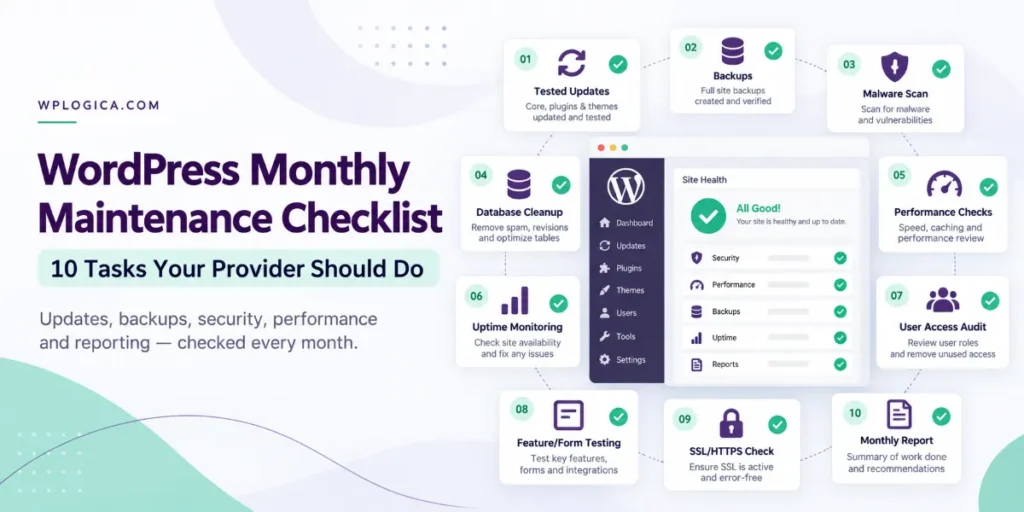
A good WordPress maintenance plan isn’t just someone fixing things when they break. Most of the value is in routine work that stops problems before visitors notice them: tested updates, working backups, security scans and a quick check that forms and checkout still work.
Use this checklist to see what a provider should be doing for your site every month, or as your own routine if you look after the site yourself. If several of these tasks are missing from what you’re paying for, it’s worth asking why.
Table of Contents
1. Test updates on staging, then update the live site
Updates to WordPress core, plugins and the theme shouldn’t be pushed straight to a busy live site. The safer routine is: take a backup, apply the updates on a staging copy, check that key pages, forms and checkout still work, then update the live site and check again.
Security fixes shouldn’t wait for the monthly cycle. A good provider applies critical security updates within a day or two of release and records version numbers before and after each update, so any problem can be traced back.
Ask your provider: Do you test updates on staging first, and how quickly do you apply security fixes?
2. Check that backups are working, and test a restore
Backups should run automatically, include both the files and the database, and be stored away from the web server. Each month, check that recent backups finished, that they’re the expected size and that there’s enough storage left. Old backups can be removed according to a set retention period, such as 30 days of daily backups.
At least once a quarter, restore a backup to a staging site to prove it works. A backup that’s never been tested is a hope, not a plan.
Ask your provider: When did you last test a restore of my site, and how long would a full restore take?
3. Scan for malware and vulnerabilities
Run a full malware scan with a tool such as Wordfence or Sucuri, look for recently changed files nobody can explain, and check installed plugins against published vulnerability reports. Review the PHP error log for warnings that point to deeper problems, and check the Security Issues report in Google Search Console to make sure Google hasn’t flagged the site.
Ask your provider: What security scans do you run, and would you tell me if Google flagged my site?
4. Clean up and optimise the database
Over time the WordPress database fills up with post revisions, auto-drafts, spam and trashed comments, and expired transients. Each month, clear out what isn’t needed, limit stored revisions (five per post is plenty for most sites) and optimise the tables.
Keep an eye on the database size too. If it keeps growing quickly, find the cause, such as a plugin storing logs or sessions in the database, rather than just deleting data.
Ask your provider: Does my plan include database cleanup, and do you track how big the database is getting?
5. Check performance and compare it with last month
Test key pages with PageSpeed Insights or GTmetrix and compare the results with the previous month. Look at Core Web Vitals and server response time (TTFB), and use a tool such as Query Monitor to find slow plugins or database queries. Compress any new images that were uploaded without optimisation, and clear the cache after changes.
The goal is simple: the site should be as fast as it was last month, or faster. If it’s getting slower, the report should say why. Our speed optimisation service can help when a site needs more than routine tuning.
Ask your provider: Can you show me how my site’s speed has changed over the last few months?
6. Review uptime and any outages
An uptime monitor such as UptimeRobot or Pingdom should check the site every few minutes. Each month, review the uptime figure and look at every outage: how long it lasted, what caused it and what’s been done to stop it happening again. Look for periods of unusually slow response too.
As a guide, 99.9% uptime allows about 43 minutes of downtime a month. If your site regularly falls well short of that, the cause is usually hosting, a heavy plugin or an attack, and it should be fixed rather than just reported.
Ask your provider: What was my uptime last month, and what caused any outages?
7. Audit user accounts and access
Check the list of WordPress users. Remove old accounts, test accounts and accounts belonging to former developers or agencies. Make sure only people who genuinely need it have Administrator access, and review recent logins for anything unusual.
Instead of forcing everyone to change passwords every few months, current security guidance favours long, unique passwords, two-factor authentication on admin accounts, and changing a password straight away if it may have been exposed.
Ask your provider: Who has admin access to my site right now, and is two-factor login turned on?
8. Test the features your business depends on
Submit every contact form and confirm the email arrives. On a store, place a test order and check that payment, confirmation emails and stock levels work. Test site search, newsletter sign-ups, booking tools and anything else visitors use, on both mobile and desktop, and check the browser console for JavaScript errors.
A broken form can go unnoticed for weeks because the site still looks fine. Monthly testing means you find the problem before your customers do.
Ask your provider: Which forms and features do you test each month, and how?
9. Check SSL and HTTPS
Confirm the SSL certificate is valid and set to renew automatically, and note when it expires. Certificate lifetimes are shorter than they used to be: since March 2026, paid certificates can be issued for a maximum of 200 days, and free Let’s Encrypt certificates usually last 90 days. A good provider is alerted well before a certificate runs out.
Check that every page redirects from http:// to https://, that no images or scripts still load over http://, and run the domain through SSL Labs’ SSL Server Test, aiming for an A or A+ grade.
Ask your provider: When does my certificate expire, and how will you know if a renewal fails?
10. Send a clear monthly report
Everything above should end up in a short report: updates applied with before and after versions, backups and restore tests, security scan results, uptime, performance compared with last month, problems found and fixed, and recommendations for what to do next.
The report is how you know the work is actually being done. If you’ve never had one, our post on the signs your WordPress site needs maintenance explains what else to look out for.
Ask your provider: Can I see an example of the report you send clients?
What to check every quarter
Some tasks don’t need doing every month, but they shouldn’t be skipped:
- Restore a backup to a staging site and confirm it works.
- Review installed plugins and remove any you no longer need, or that their developers have stopped updating.
- Check that your PHP version is still supported, and plan an upgrade before it reaches end of life.
- Look for broken links and 404 errors, and fix or redirect them.
- Confirm you still have admin access to your hosting, domain registrar and DNS.
Is your provider doing all of this?
If your plan covers only updates and backups, you’re getting the basics, not full maintenance. That can be enough for a small, simple site. For a business site or online store, the security, testing and reporting tasks are where most problems get caught. Our guide to WordPress maintenance cost shows what different levels of plan usually include and what they charge.
WordPress maintenance with WPLogica
WPLogica’s WordPress maintenance plans (AMC) are priced to the scope of your site, with 24×7 technical support for maintenance and hosting clients. See what’s included on our WordPress maintenance service page, or contact us for a quote. If your site has already been hacked, our WordPress security services cover malware cleanup.
Frequently asked questions
What should a monthly WordPress maintenance plan include?
At a minimum: tested updates, working off-site backups, security scans, uptime monitoring and a monthly report. Better plans add database cleanup, performance checks, feature testing, user audits and support time for small fixes.
How long does monthly WordPress maintenance take?
For a typical business site, the routine tasks usually take a few hours a month. Stores and sites with many plugins or custom code take longer, and fixing problems found during the checks is extra.
Should WordPress updates be automatic?
Automatic updates are fine for minor WordPress core releases and simple sites. For business sites and stores, it’s safer to test plugin and theme updates on staging first, because an automatic update can break forms, layouts or checkout without anyone noticing.
How often should WordPress backups run?
Daily for most business sites, and more often, hourly or in real time, for WooCommerce stores and sites that change throughout the day. Keep copies off the server and test a restore at least once a quarter.
What uptime should a WordPress site have?
Aim for at least 99.9%, which allows about 43 minutes of downtime a month. Good hosting and monitoring keep most business sites at or above that level.