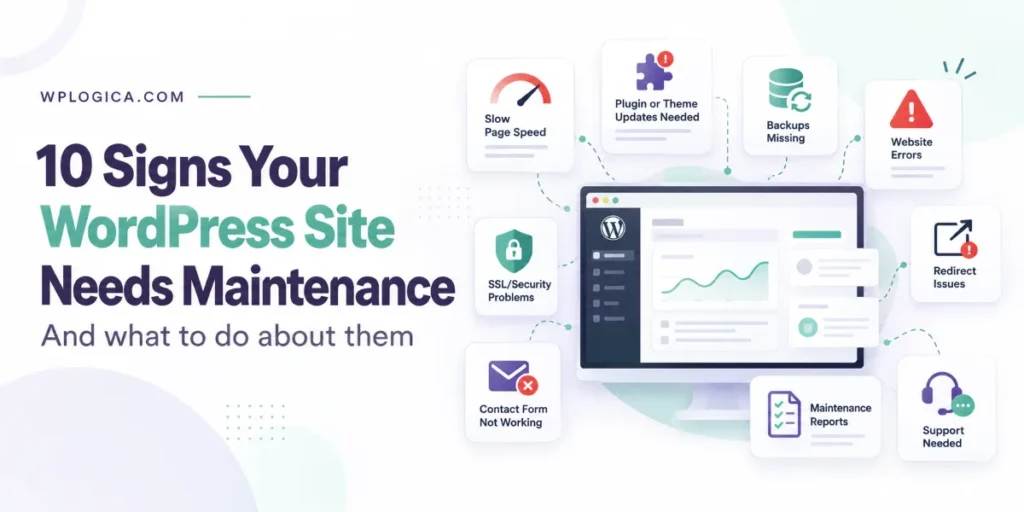
Most WordPress problems don’t come out of nowhere. Before a site gets hacked, crashes or slides down Google, it usually shows warning signs for weeks: pages getting slower, update notices piling up, a contact form that quietly stops sending.
Here are 10 of the most common signs, what each one means and what to do about it. If more than two or three apply to your site, it’s time for a proper maintenance check.
Table of Contents
1. Your pages take more than a few seconds to load
Slow pages lose visitors, and speed is one of the signals Google looks at when it assesses page experience. Google’s Core Web Vitals aim for the main content of a page to load within 2.5 seconds (Largest Contentful Paint). If your pages regularly take longer than that on mobile, something needs attention.
Common causes are oversized images, too many plugins, a database full of old revisions and leftover data, missing caching, and hosting that’s too small for your traffic.
What to do: Test a few key pages in PageSpeed Insights and look at the mobile results. Compress images, remove plugins you don’t use and turn on caching. If the site is still slow, our speed optimisation service can find and fix the bottleneck.
2. WordPress, plugins or your theme are out of date
Many updates fix security vulnerabilities, and once a fix is released the weakness becomes public knowledge. Attackers rarely pick sites by hand: automated bots scan the web for sites still running vulnerable versions. Most WordPress vulnerabilities are found in plugins rather than WordPress core, so a dashboard full of plugin update notices is a real risk.
What to do: Take a backup, then update. On a business site, test updates on a staging copy first, update one plugin at a time and check key pages and forms afterwards. Delete plugins and themes you no longer use, because inactive code can still be a way in.
3. You don’t have a recent backup
If your site disappeared today, how much would you lose? If your newest backup is more than a day or two old, or you’re not sure one exists, a hack, failed update, hosting problem or simple mistake could cost you weeks of work. Backups stored only on the same server can disappear along with the site.
What to do: Set up automatic daily backups, or more often for WooCommerce stores, which take orders between backups. Keep copies off the server, for example in cloud storage, and test a restore now and then. A backup you’ve never restored is a guess.
4. You see blank pages or error messages
A blank white screen, a 500 Internal Server Error or the message “There has been a critical error on this website” usually point to a plugin conflict, a failed update, a PHP version problem or a memory limit. Sometimes only part of the site breaks, such as the admin area, the checkout or a single page.
What to do: Work through our step-by-step guides for the white screen of death, the 500 internal server error and the “critical error” message. If errors keep coming back after you fix them, the site needs a closer look rather than another quick fix.
5. Your SSL certificate has expired or isn’t working
If your SSL certificate expires or is set up wrongly, browsers show visitors a security warning before they reach your site, and most people leave. HTTPS is also a small ranking signal in Google Search. Certificates don’t last long: free Let’s Encrypt certificates usually run for 90 days, and since March 2026 paid certificates can be issued for a maximum of 200 days.
What to do: Check that your host renews certificates automatically, and that every page loads on https:// without mixed-content warnings (images or scripts still loading over http://). Add certificate expiry to your monthly checks.
6. Visitors are being redirected to other sites
If visitors, especially those arriving from Google or on mobile, are sent to spam, adult or scam pages, your site has almost certainly been hacked. These redirects are often hidden from logged-in admins, so you may not see them yourself. Google can flag hacked sites in search results and in Chrome with warnings that keep visitors away.
What to do: Treat it as an emergency. Change passwords for WordPress, hosting and FTP, scan for malware and remove it, then find and close the way the attacker got in, or the infection will come back. Our WordPress security services cover malware cleanup.
7. Your contact form has stopped sending
A broken form is easy to miss because nothing looks wrong. Visitors fill it in, see a thank-you message and the email never arrives. Common causes are a form plugin update, a conflict with a security or caching plugin, or emails being blocked because the site sends mail without a proper SMTP setup.
What to do: Send a test message through every form at least once a month and confirm it arrives. Send site email through a proper SMTP service and set up SPF and DKIM records for your domain so messages don’t land in spam. If your form plugin can save entries to the database, turn that on as a safety net.
8. Google or your host sends security warnings
The Security Issues report in Google Search Console, an email from your hosting company or an alert from a security plugin may tell you that your site contains malware, spam or harmful code. These warnings are rarely false alarms. The longer they’re left, the longer visitors see warnings and the harder it is to win back their trust and your search visibility.
What to do: Clean the site first, then request a review in Search Console once the problem is fixed. If Search Console isn’t set up for your site yet, set it up, so you hear about problems at all.
9. You never get a maintenance report
If someone is maintaining your site, you should be able to see what they’ve done. A monthly report usually lists the updates applied, backups taken, uptime, security scans and any fixes. Without one, you have no way of knowing whether the work is happening.
What to do: Ask your provider for a monthly report. If you look after the site yourself, keep a simple log of updates and checks so you can see when something was missed. Our monthly maintenance checklist shows what a good report should cover.
10. You can’t reach the person who built or maintains your site
It happens more often than it should: the freelancer who built the site has moved on, emails go unanswered, or nobody knows who holds the hosting and domain logins. That hurts most on the day the site goes down or gets hacked.
What to do: Make sure you, not just your developer, have admin access to WordPress, your hosting, your domain registrar and DNS. Write down who to call in an emergency and how quickly they’ve promised to respond. If you don’t have that person, arrange maintenance support before you need it.
How many signs apply to your site?
- None or one: keep up regular checks and you’re likely in good shape.
- Two to four: set aside time this month to fix them, starting with backups and updates.
- Five or more, or sign 6 or 8 on its own: get help now. Redirects and security warnings usually mean the site has already been compromised.
Get help with WordPress maintenance
WPLogica’s WordPress maintenance plans (AMC) cover updates, backups, security monitoring and fixes, with 24×7 technical support for maintenance and hosting clients. Plans are priced to the scope of your site.
See our WordPress maintenance service page or contact us for a quote. If you’re comparing options, our guide to WordPress maintenance cost explains what plans usually include and what they charge.
Frequently asked questions
How often does a WordPress site need maintenance?
Check for updates weekly, back up daily and do a fuller review of speed, security, forms and broken links once a month. Busy stores and sites with many plugins need checking more often.
What happens if I don’t maintain my WordPress site?
Over time it gets slower, plugins fall behind on security fixes and the risk of being hacked or breaking after an update grows. Fixing a hacked or broken site usually costs more than regular maintenance.
Can I maintain a WordPress site myself?
Yes, for a simple site. Keep everything updated, run daily off-site backups, use a security plugin, test your forms and check the site weekly. Get help for WooCommerce stores, custom code or anything you can’t safely fix.
How do I know if my WordPress site has been hacked?
Common signs are redirects to unfamiliar sites, admin users you didn’t create, spam pages appearing in Google results, security warnings from Google or your host, and files on the server you don’t recognise.
Does website speed affect Google rankings?
Yes, but it’s one signal among many. Google uses Core Web Vitals as part of its page experience signals. A faster site mainly helps by keeping visitors on the page; speed alone won’t outrank more relevant content.