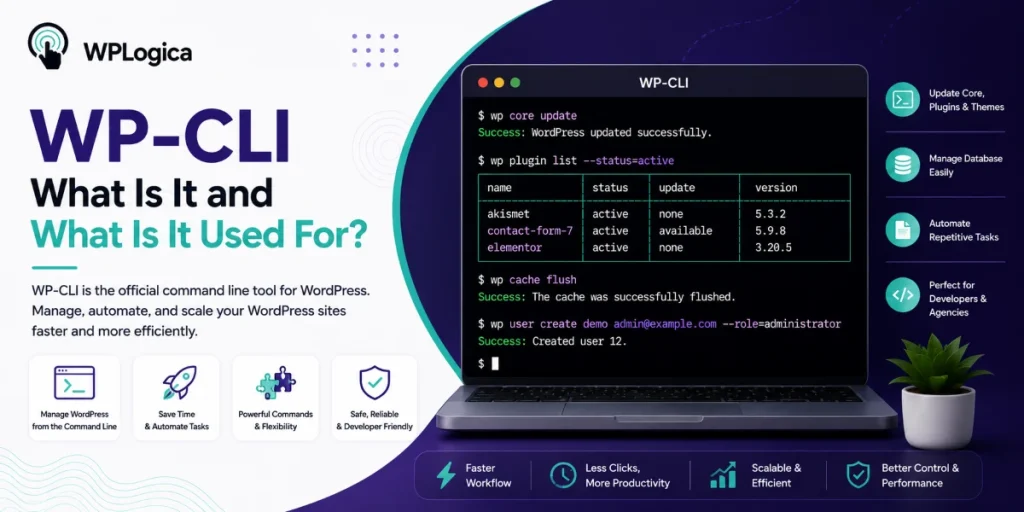
The WordPress Command Line Interface (WP-CLI) offers several useful features for anyone working with the WordPress content management system (CMS). It can significantly reduce workload and help users manage WordPress websites more efficiently.
But what exactly is WP-CLI, and what can it be used for?
In this article, we explain what WP-CLI is, how it works, and why it can be a valuable tool for WordPress users and developers.
Table of Contents
What Is WP-CLI?
Translated into simple terms, the Command Line Interface (CLI) refers to a command line environment. This may remind some users of older operating systems like DOS, where everything was controlled using text commands instead of a graphical user interface.
WP-CLI works in a similar way.
It is a text-based tool that allows users to manage WordPress websites using commands instead of clicking through the WordPress dashboard. This makes WP-CLI especially useful for developers, agencies, and users who work with WordPress regularly.
Many users are already familiar with command-line interfaces from server management environments where commands are used to:
- Edit directories
- Modify files
- Start services
- Manage servers
Although it may seem complicated at first, command-line tools often become much faster and more efficient after a short learning period.
WP-CLI has been available since 2011 and focuses entirely on managing WordPress installations through the command line.
Why WP-CLI Is Worth Using
WP-CLI offers several advantages for WordPress users and allows many tasks to be completed much faster than through the standard WordPress dashboard.
Install Plugins Using WP-CLI
One of the biggest advantages of WP-CLI is the ability to install plugins quickly and efficiently.
This is especially useful for developers or agencies managing multiple WordPress websites.
Normally, installing a plugin manually requires:
- Logging into the WordPress backend
- Opening the Plugins section
- Searching for the plugin
- Installing the plugin
- Activating it
- Configuring the settings
This process can take several minutes for each plugin and WordPress installation.
With WP-CLI, the process becomes much faster.
You simply:
- Log in via SSH
- Navigate to the correct directory
- Run predefined commands
Within seconds, the plugin can be installed, activated, and configured automatically.
Another major advantage is that there is no need to load multiple admin pages during the process.
WP-CLI also allows users to install and configure multiple plugins in a single step, including related add-ons.
Use WordPress Functions Without Installing Extra Plugins
WP-CLI also makes it possible to use certain WordPress functions without installing additional plugins.
This helps keep WordPress installations leaner, faster, and more optimized.
Using WP-CLI functions is particularly useful when certain tasks only need to be performed occasionally.
For example, WP-CLI can be used to:
- Grant additional user permissions
- Edit user roles
- Regenerate image thumbnails
- Import large media files
- Manage database operations
Some of these tasks can be difficult or limited when performed directly through the WordPress dashboard.
Using WP-CLI for Automation
Automation is another major advantage of WP-CLI.
Many repetitive tasks can be automated easily using scripts and scheduled commands.
For example, WP-CLI can be used for:
- Website backups
- WordPress updates
- Plugin updates
- Database optimization
- Cache clearing
Users can save WP-CLI commands inside a .sh script and execute them automatically whenever needed.
This is especially helpful for users who prefer manual control over updates instead of relying entirely on WordPress automatic updates.
WP-CLI in Practice
Getting started with WP-CLI requires some basic familiarity with command-line tools and server access.
To use WP-CLI, users typically need:
- SSH access
- An SSH key
- Access to the server environment
Once connected to the server, users can navigate to the WordPress installation directory using commands such as:
cd html/wordpress
After that, WP-CLI commands can be executed directly to manage the WordPress installation efficiently.
Official documentation and installation instructions for WP-CLI are available at:
- wp-cli.org
The website also provides a complete list of available WP-CLI commands and usage examples.
After a short learning period, users can quickly begin using WP-CLI for plugin management, updates, automation, backups, and other administrative tasks.
Conclusion: WP-CLI Makes WordPress Management Easier
Overall, the WordPress Command Line Interface (WP-CLI) offers several useful features that make WordPress management faster and more efficient.
It is especially valuable for:
- Developers
- Agencies
- Advanced WordPress users
- Users managing multiple websites
WP-CLI makes it easier to:
- Install plugins
- Manage updates
- Create backups
- Automate tasks
- Modify user roles
- Handle advanced WordPress operations
Although it requires some initial learning and technical understanding, the time savings and efficiency improvements quickly make it worthwhile.
For heavy WordPress users, WP-CLI is definitely worth exploring. Even beginners can benefit from learning the basics of the WordPress command line interface and understanding how it can simplify website management.